Qwen-Image-Edit-2511-Multiple-Angles LoRA: Complete Guide to Multi-Angle AI Image Generation
Master 96 unique camera poses for professional multi-angle image generation. Complete guide to setup, optimization, and real-world applications.
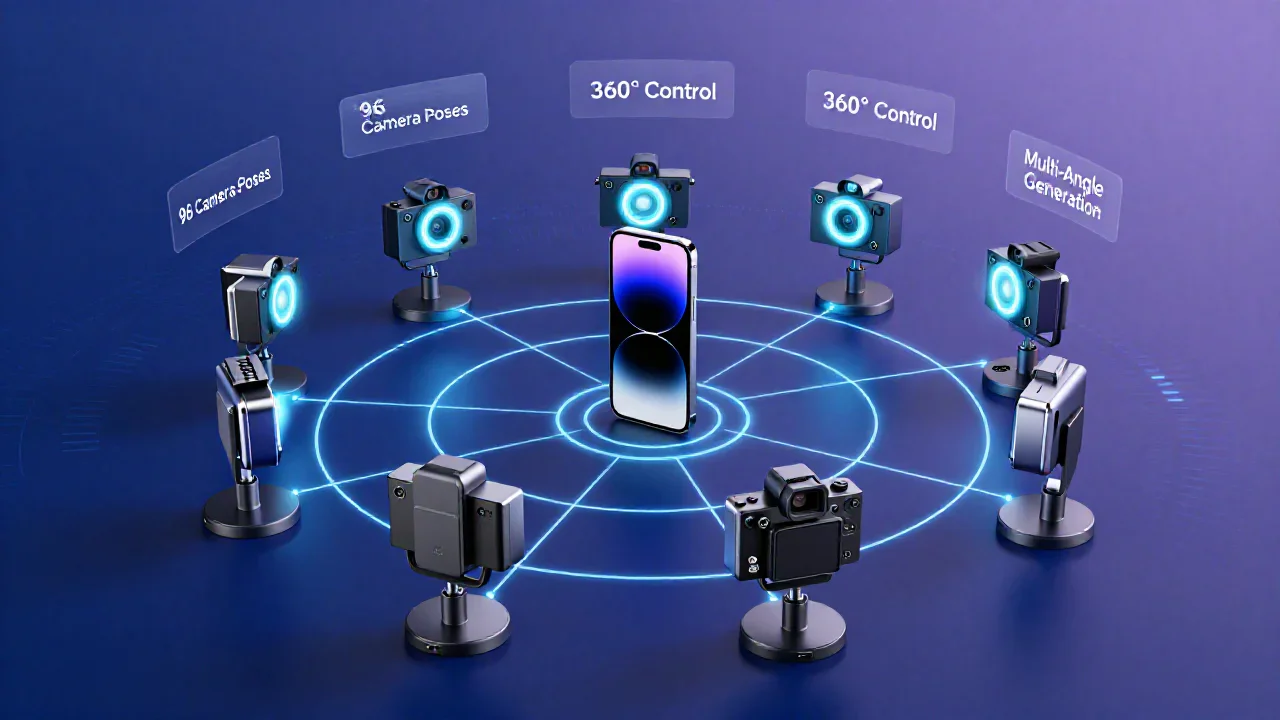
Introduction: The Revolution in Camera Control for AI Image Editing
Imagine having a virtual camera operator at your fingertips, capable of rotating around any object, adjusting angles from dramatic low shots to sweeping aerial views, and switching between close-ups and wide shots—all without reshooting a single photo. This isn't science fiction anymore. The Qwen-Image-Edit-2511-Multiple-Angles LoRA has transformed how creators approach AI image generation, offering unprecedented control over camera perspectives.
Released by fal.ai in late 2025, this groundbreaking LoRA adapter brings professional cinematography techniques to AI image editing. With over 16,000 downloads per month and 441+ likes on Hugging Face, it's quickly becoming an essential tool for content creators, e-commerce businesses, and digital artists who need multiple product angles or dynamic visual storytelling.
What makes this LoRA special? Unlike traditional image editing that requires manual manipulation or multiple photo shoots, the Multiple-Angles LoRA generates new perspectives from a single input image. It's trained on 3,000+ high-quality Gaussian Splatting renders, supporting 96 distinct camera poses across 4 elevation angles, 8 azimuth directions, and 3 distance levels.
In this comprehensive guide, we'll explore everything you need to know about the Qwen-Image-Edit-2511-Multiple-Angles LoRA—from basic setup to advanced techniques. Whether you're creating product photography for e-commerce, developing visual content for social media, or building complex AI workflows, this guide will help you master multi-angle image generation.
What is Qwen-Image-Edit-2511-Multiple-Angles LoRA?
Understanding the Technology
The Qwen-Image-Edit-2511-Multiple-Angles LoRA is the first multi-angle camera control LoRA adapter specifically designed for the Qwen-Image-Edit-2511 base model. A LoRA (Low-Rank Adaptation) is a lightweight fine-tuning technique that adds new capabilities to existing AI models without requiring complete retraining.
Think of it as a specialized lens attachment for your camera. The base Qwen-Image-Edit model is like a professional camera body, while the Multiple-Angles LoRA is a precision lens that adds advanced camera movement and angle control capabilities.
Key Features and Capabilities
96 Unique Camera Poses
The LoRA supports an impressive array of camera positions:
- 8 Azimuth Angles: Complete 360° horizontal rotation (front, front-right quarter, right side, back-right quarter, back, back-left quarter, left side, front-left quarter)
- 4 Elevation Angles: Vertical positioning from -30° to 60° (low-angle shot, eye-level shot, elevated shot, high-angle shot)
- 3 Distance Levels: Zoom control with close-up (×0.6), medium shot (×1.0), and wide shot (×1.8)
Training Data Excellence
The model was trained on over 3,000 high-quality image pairs using Gaussian Splatting technology, which ensures:
- 3D-consistent spatial understanding
- Accurate perspective transformations
- Realistic lighting and shadow adjustments
- Precise camera control without artifacts
Professional Cinematography Terms
The LoRA uses industry-standard cinematography terminology, making it intuitive for anyone familiar with photography or videography. Terms like "low-angle shot," "quarter view," and "close-up" translate directly into precise camera positions.
How It Works
The Multiple-Angles LoRA operates through a simple yet powerful prompt-based system. Instead of complex parameter adjustments, you describe the desired camera position using natural language:
<sks> [azimuth] [elevation] [distance]For example:
<sks> front view eye-level shot medium shot- Standard product photography angle<sks> right side view high-angle shot close-up- Detailed side view from above<sks> back view low-angle shot wide shot- Dramatic rear perspective
The <sks> trigger token activates the LoRA, and the following descriptors precisely control the virtual camera's position.
Understanding the Camera System: Azimuth, Elevation, and Distance
Azimuth Angles: 360° Horizontal Rotation
The azimuth angle controls horizontal rotation around your subject, offering 8 distinct viewpoints at 45° intervals:
Front Quadrant (0° - 90°)
- 0° - Front View: The classic straight-on perspective, ideal for product listings and portraits
- 45° - Front-Right Quarter View: Shows depth while maintaining front visibility, perfect for showcasing product features
Right Quadrant (90° - 180°)
- 90° - Right Side View: Pure profile shot, excellent for displaying side details
- 135° - Back-Right Quarter View: Transitional angle revealing rear features
Back Quadrant (180° - 270°)
- 180° - Back View: Complete rear perspective, essential for full product documentation
- 225° - Back-Left Quarter View: Mirror of the back-right angle
Left Quadrant (270° - 360°)
- 270° - Left Side View: Left profile, completing the side documentation
- 315° - Front-Left Quarter View: Returns to front while showing left-side details
This comprehensive coverage means you can generate a complete 360° product spin from a single input image—a game-changer for e-commerce platforms.

8种方位角展示:完整360°水平旋转
Elevation Angles: Vertical Perspective Control
The elevation angle determines the camera's vertical position relative to your subject:
Low-Angle Shot (-30°)
The camera is positioned below the subject, looking upward. This angle:
- Creates a sense of power and dominance
- Makes subjects appear larger and more imposing
- Works exceptionally well for architectural shots and hero products
- Adds dramatic flair to character portraits
Eye-Level Shot (0°)
The camera is at the same height as the subject's center. This neutral angle:
- Provides natural, relatable perspectives
- Works for most product photography needs
- Creates balanced, professional-looking images
- Serves as the baseline for standard documentation
Elevated Shot (30°)
The camera is slightly above the subject, angled downward. This angle:
- Offers a comprehensive view of the subject
- Reduces background clutter
- Works well for flat-lay style photography
- Provides a slightly authoritative perspective
High-Angle Shot (60°)
The camera is positioned well above the subject, looking down. This angle:
- Creates top-down or bird's-eye views
- Excellent for showing layout and spatial relationships
- Makes subjects appear smaller or more vulnerable
- Perfect for overhead product arrangements
Distance Levels: Controlling the Frame
The distance parameter controls how close or far the virtual camera is from your subject:
Close-Up (×0.6)
The camera moves 40% closer than the standard distance. This tight framing:
- Emphasizes details, textures, and fine features
- Creates intimate, focused compositions
- Ideal for highlighting product craftsmanship
- Works well for facial expressions and small objects
Medium Shot (×1.0)
The standard baseline distance. This balanced framing:
- Shows the entire subject with moderate context
- Provides the most versatile composition
- Works for general product photography
- Offers a natural, comfortable viewing distance
Wide Shot (×1.8)
The camera pulls back 80% farther than standard. This expansive framing:
- Includes significant background and environment
- Shows the subject in context
- Creates a sense of space and scale
- Perfect for lifestyle photography and scene-setting
Getting Started: Installation and Setup
Prerequisites
Before diving into the Qwen-Image-Edit-2511-Multiple-Angles LoRA, ensure you have:
- Base Model: Qwen-Image-Edit-2511 (available on Hugging Face)
- Platform: ComfyUI, SwarmUI, or fal.ai platform access
- Hardware: GPU with at least 8GB VRAM recommended
- LoRA File: Download from Hugging Face
Installation in ComfyUI
ComfyUI offers the most flexible workflow for using the Multiple-Angles LoRA. Here's how to set it up:
Step 1: Install ComfyUI-qwenmultiangle Node
cd ComfyUI/custom_nodes
git clone https://github.com/jtydhr88/ComfyUI-qwenmultiangle.git
Restart ComfyUI after installation.
Step 2: Download the LoRA File
Navigate to your ComfyUI lora folder and download the LoRA:
- File:
qwen-image-edit-2511-multiple-angles-lora.safetensors - Location:
ComfyUI/models/loras/
Step 3: Load the Workflow
The repository includes a pre-configured workflow file:
- Download:
comfyui-workflow-multiple-angles.json - Import into ComfyUI via "Load" button
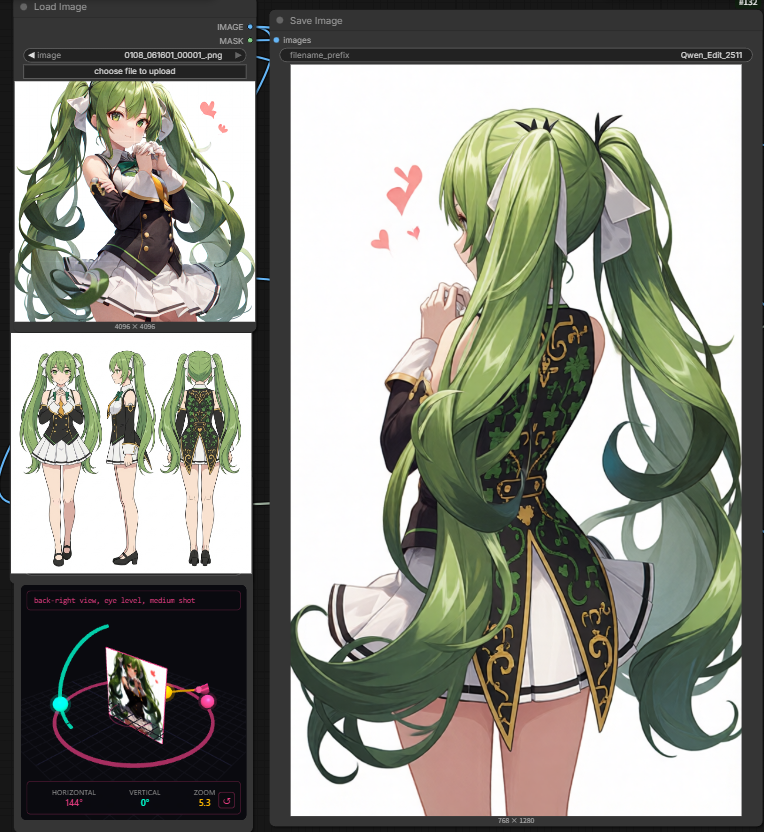
Using the Interactive Camera Control
The ComfyUI-qwenmultiangle node provides an intuitive 3D interface for camera control:
3D Viewport Features
- Pink Ring Handle: Controls azimuth (horizontal rotation)
- Cyan Arc Handle: Controls elevation (vertical angle)
- Gold Linear Handle: Controls distance (zoom level)
Quick Selection Dropdowns
- Azimuth presets: Front, Quarter, Side, Back views
- Elevation presets: Low-angle, Eye-level, Elevated, High-angle
- Distance presets: Wide, Medium, Close-up
Camera View Mode
Enable camera view to preview how your image will look from the selected angle:
- Drag left/right: Rotate horizontally
- Drag up/down: Rotate vertically
- Scroll wheel: Zoom in/out
Quick Start with Z-Image Platform
For users who want to get started immediately without local setup, Z-Image offers a streamlined experience with the Qwen-Image-Edit-2511-Multiple-Angles LoRA pre-configured and ready to use.
Why Choose Z-Image for Multi-Angle Generation?
- No Installation Required: Access the LoRA through a web interface
- Pre-Optimized Settings: LoRA strength and parameters already tuned for best results
- Fast Processing: Cloud-based GPU infrastructure for quick generation
- Batch Processing: Generate multiple angles simultaneously
- Credit-Based System: Pay only for what you use
Simply upload your image, select your desired camera angles using the intuitive interface, and generate professional multi-angle views in seconds.

ComfyUI交互式相机控制界面
Mastering Prompt Engineering for Multi-Angle Generation
The Prompt Formula
The key to successful multi-angle generation lies in understanding the prompt structure:
<sks> [azimuth descriptor] [elevation descriptor] [distance descriptor]Critical Rules:
- Always start with the
<sks>trigger token - Maintain the order: azimuth → elevation → distance
- Use exact terminology from the training data
- Keep prompts concise and specific
Complete Prompt Reference Guide
Azimuth Descriptors (8 options):
front viewfront-right quarter viewright side viewback-right quarter viewback viewback-left quarter viewleft side viewfront-left quarter view
Elevation Descriptors (4 options):
low-angle shot(-30°)eye-level shot(0°)elevated shot(30°)high-angle shot(60°)
Distance Descriptors (3 options):
close-upmedium shotwide shot
Practical Prompt Examples
E-Commerce Product Photography:
<sks> front view eye-level shot medium shot
<sks> front-right quarter view eye-level shot medium shot
<sks> right side view eye-level shot medium shot
<sks> back view eye-level shot medium shot
These four angles provide comprehensive product documentation for online listings.
Dramatic Character Portraits:
<sks> front view low-angle shot close-up
<sks> front-left quarter view low-angle shot close-up
Low-angle close-ups create powerful, heroic character presentations.
Architectural Visualization:
<sks> front-right quarter view elevated shot wide shot
<sks> front view high-angle shot wide shot
Elevated and high-angle wide shots showcase building design and context.
Lifestyle Product Shots:
<sks> front-left quarter view elevated shot wide shot
<sks> front view eye-level shot medium shot
Combining elevated wide shots with standard medium shots creates engaging lifestyle content.

不同应用场景的提示词示例
Optimization Tips and Best Practices
LoRA Strength Settings
The LoRA strength parameter controls how strongly the multi-angle effect is applied:
Recommended Range: 0.8 - 1.0
- 0.8: Subtle angle changes, maintains more of the original image characteristics
- 0.9: Balanced approach, recommended starting point for most use cases
- 1.0: Maximum angle control, strongest perspective transformation
When to Adjust:
- Lower strength (0.7-0.8) for subtle perspective shifts
- Higher strength (0.9-1.0) for dramatic angle changes
- Test different values to find the sweet spot for your specific images
Input Image Quality Guidelines
The quality of your input image significantly impacts the results:
Ideal Input Characteristics:
- Clear Subject: Well-defined main subject with good separation from background
- Good Lighting: Even, well-lit images produce better angle transformations
- High Resolution: Minimum 1024x1024 pixels recommended
- Clean Background: Simple backgrounds work better than cluttered scenes
- Sharp Focus: Avoid blurry or out-of-focus images
Subject Types That Work Best:
- Products with clear geometry (electronics, furniture, accessories)
- Characters and portraits with distinct features
- Architectural elements and buildings
- Vehicles and mechanical objects
- Food and beverage items
Real-World Use Cases and Applications
E-Commerce Product Photography
The Challenge:
Traditional product photography requires expensive equipment, professional photographers, and multiple photo shoots to capture all necessary angles. This process is time-consuming and costly, especially for businesses with large product catalogs.
The Solution with Multi-Angle LoRA:
Generate a complete 360° product view from a single high-quality photo. Create front, side, back, and quarter views in minutes instead of hours.
Recommended Workflow:
- Capture one high-quality front-facing product photo
- Generate 8 azimuth angles at eye-level medium shot
- Add elevated shots for top-down views
- Create close-ups for detail shots
- Export all angles for product listings
Time Savings: Reduce photography time from 2-3 hours per product to under 15 minutes.

电商产品摄影应用示例:从单张照片生成多角度视图
Social Media Content Creation
The Challenge:
Social media algorithms favor diverse, engaging visual content. Creating multiple angles and perspectives for each post requires significant effort.
The Solution with Multi-Angle LoRA:
Transform a single image into a carousel post with multiple dynamic angles. Create engaging before/after comparisons or showcase products from different perspectives.
Content Ideas:
- Product reveal sequences (wide → medium → close-up)
- 360° rotation videos using sequential angle frames
- Comparison posts showing different perspectives
- Dynamic storytelling through camera movement
Troubleshooting Common Issues
Issue 1: Inconsistent Results Across Angles
Symptoms: Generated angles don't maintain subject consistency or show distortions.
Solutions:
- Ensure LoRA strength is set between 0.8-1.0
- Use high-quality input images with clear subject definition
- Verify you're using exact prompt terminology from the reference guide
- Check that the base model is Qwen-Image-Edit-2511
Issue 2: Prompt Not Working
Symptoms: The LoRA doesn't seem to respond to angle prompts.
Solutions:
- Always include the
<sks>trigger token at the start - Maintain the correct order: azimuth → elevation → distance
- Use exact descriptors (e.g., "front view" not "front angle")
- Ensure LoRA file is properly loaded in your workflow
Conclusion: Transforming Your Creative Workflow
The Qwen-Image-Edit-2511-Multiple-Angles LoRA represents a significant leap forward in AI-powered image generation. By providing precise control over 96 distinct camera poses, it eliminates the traditional barriers of multi-angle photography and 3D rendering.
Key Takeaways:
- Accessibility: No 3D modeling skills or expensive photography equipment required
- Efficiency: Generate complete 360° product views in minutes instead of hours
- Flexibility: 96 camera poses cover virtually any perspective need
- Quality: Trained on 3,000+ high-quality renders for consistent results
- Integration: Works seamlessly with ComfyUI, SwarmUI, and cloud platforms like Z-Image
Whether you're an e-commerce business owner looking to streamline product photography, a content creator seeking dynamic visual content, or a digital artist exploring new creative possibilities, the Multiple-Angles LoRA offers a powerful solution.
Getting Started Today:
- Quick Start: Visit Z-Image for immediate access without installation
- Local Setup: Download the LoRA from Hugging Face and install ComfyUI-qwenmultiangle
- Experiment: Start with basic angles (front view eye-level medium shot) and explore from there
- Optimize: Fine-tune LoRA strength and input quality for your specific needs
The future of multi-angle image generation is here. With the Qwen-Image-Edit-2511-Multiple-Angles LoRA, you have the tools to create professional, multi-perspective visual content faster and more efficiently than ever before.
Ready to transform your workflow? Start generating multi-angle images today and experience the power of AI-driven camera control.